ICICI Bank iMobile Pay: How to Securely Manage Your Account and Find Branch IFSCs (2026 Guide)
Learn best practices for secure account management and how to find your branch IFSC code. Protect your banking information effectively.
Table of Contents
Let’s be honest: in 2026, if you are still visiting a bank branch for anything other than a locker visit or a specialized loan, you are wasting your time.
With over 15 million users, ICICI Bank's iMobile Pay has evolved from a simple banking app into a "Super App" that handles everything from UPI payments to booking flight tickets. But with great power comes great responsibility—specifically, the responsibility to keep your hard-earned money safe from the increasingly sophisticated digital scams we are seeing this year.
If you are new to iMobile Pay or just trying to figure out why your "SIM Binding" keeps failing, you are in the right place. This deep-dive guide will walk you through setting up the app securely under the new April 2026 RBI guidelines, managing your account like a pro, and—crucially—finding the right IFSC codes to ensure your fund transfers never bounce.
The 2026 Reality Check: What’s New?
Before we get into the "how-to," you need to know about the regulatory shift that hit the Indian banking sector this year.
Effective April 1, 2026, the Reserve Bank of India (RBI) mandated Risk-Based Authentication (RBA) for all mobile banking apps. This isn't just jargon; it affects how you log in daily.
- Strict SIM Binding: You can no longer activate iMobile Pay on a device that doesn't have the physical SIM card inside. Wi-Fi-only activation is dead.
- Location-Aware Security: If you try to transfer a large sum from a new location (say, while vacationing in Bali), the app might trigger an "Additional Factor of Authentication" (AFA)—like a face scan or a secondary grid card check.
Pro Tip: Don't panic if the app asks for camera permissions. In 2026, "Liveness Detection" (scanning your face to prove you aren't a photo) is a standard security feature for high-value transactions.
iMobile Pay vs. Net Banking: Do You Need Both?
Many of my readers at ifsc.co ask, "Why do I need the app if I have net banking?" Here is the deal:
|
Feature |
iMobile Pay App |
ICICI Net Banking (Desktop) |
|
Setup Time |
Instant (via SIM Verification) |
24 Hours (Requires Activation) |
|
Security |
High (Device Lock + Bio-metric) |
Medium (Password + Grid Card) |
|
Fund Transfer |
Easy UPI & IMPS (One-Tap) |
Best for Large RTGS Transfers |
|
IFSC Finder |
Built-in Locator |
Manual Entry Required |
|
Cardless Cash |
Yes (Withdraw from ATM via App) |
No |
|
Bill Payments |
Instant & Automated |
Manual Process |
Verdict: Use iMobile Pay for 95% of your daily life. Use Net Banking only when you need to download 3 years of statements or manage complex tax payments.
Step-by-Step: Activating iMobile Pay in 2026
Setting this up can be tricky because of the new security protocols. Follow these steps exactly to avoid the dreaded "Verification Failed" error.
Step 1: Download & SIM Check
- Download iMobile Pay from the Google Play Store or Apple App Store.
- Critical Step: Ensure the SIM card linked to your ICICI bank account is in the Primary Slot (Slot 1) of your phone.
- Turn off Wi-Fi. You must be on mobile data for the initial verification. This is the new "SIM Binding" rule.
Step 2: Verification
- Open the app and tap "Let's Get Started".
- Select "Indian Resident Account".
- The app will send a silent SMS from your phone to verify your number. * Troubleshooting: If this fails, check if you have an active SMS pack. Unlimited data packs often don't include outgoing SMS in the base tier.
Step 3: Authentication
You will be asked to authenticate using one of two methods:
- Method A (Recommended): Debit Card Grid. Enter the numbers corresponding to the grid on the back of your debit card.
- Method B: Net Banking ID. Enter your User ID and Password.
Step 4: Secure Your Access
- Set a 4-digit Login PIN. Make it unique (not 1234 or 1111).
- Enable Biometrics: Immediately go to Settings and enable FaceID or Fingerprint. In 2026, this is the safest way to log in because it bypasses screen-recording malware.
The "IFSC Code" Connection: Why It Matters
Since you are on ifsc.co, let's talk about the backbone of your transfers: the IFSC Code.
iMobile Pay has a great feature, but it can be dangerous if you rely on it blindly. When you add a new beneficiary ("Payee"), the app asks for the IFSC code.
- The Problem: The app's auto-search database isn't always updated in real-time. If a branch merged last month (a common occurrence in 2025-2026), the app might still show the old code.
- The Risk: Sending money to an invalid or closed IFSC can result in your funds being stuck in a "suspense account" for 7-10 working days.
Expert Advice: Always verify the IFSC code on our [ifsc.co Homepage Search Tool] before adding a new beneficiary. Our database is updated daily. Once verified, manually enter the 11-digit code into iMobile Pay to be 100% safe.
Troubleshooting: Cracking the Error Codes
Is the app driving you crazy? Here are the most common error codes we are seeing in 2026 and how to fix them.
1. Error Code: "Sim Verification Failed" (or "Device Not Recognized")
- The Cause: You are likely using a Dual SIM phone and the data is active on the wrong SIM.
- The Fix:
- Go to Phone Settings > SIM Cards.
- Temporarily disable the non-bank SIM.
- Force close iMobile Pay and try again. It works 99% of the time.
2. Error Code: 106 (System Error)
- The Cause: This is a server-side timeout, usually happening during peak hours (10 AM - 12 PM).
- The Fix: Do not keep retrying, or your account might get locked. Wait 30 minutes. If it persists, clear the app's cache (Android) or offload the app (iOS).
3. "Cooling Period" Alert
- The Cause: You just re-installed the app or changed your PIN.
- The Deal: Under 2026 fraud rules, if you reinstall the app on a new phone, you cannot transfer more than ₹5,000 for the first 24 hours. There is no workaround for this—it’s for your safety.
2026 Security Watch: Don't Be a Victim
Scammers have moved on from asking for OTPs. In 2026, they use psychological tricks and "Screen Sharing" apps.
The "APK" Scam
You might get a WhatsApp message saying, "Your ICICI KYC is expired. Update now via this app." It comes with a file attachment (an APK).
- The Rule: NEVER install an APK file sent via chat. iMobile Pay is only available on the official App Stores. If you install that APK, you are giving hackers full control of your phone.
The "Screen Share" Trap
You get a call from "ICICI Support" claiming a transaction failed. They ask you to download AnyDesk, TeamViewer, or QuickSupport to "help you fix it."
- The Reality: The moment you share your screen, they can see your login PIN and OTPs. ICICI Bank employees will never ask you to download screen-sharing tools. Hang up immediately.
Frequently Asked Questions (FAQ)
Q1: Can I use iMobile Pay without a Debit Card?A: Yes, but with limited access. You can activate it using your Net Banking credentials, but you won't be able to use UPI or transfer funds until you verify yourself via a Debit Card or Aadhaar OTP (new 2026 feature).
Q2: How do I find my own Branch IFSC in the app?A: Log in and tap on the "Services" icon (bottom right). Select "Account Services" > "View Account Details". Your specific Branch IFSC is listed there.
Q3: Why is my UPI transaction failing on iMobile Pay?A: If your bank server is up, check your daily limit. In 2026, the standard UPI limit is ₹1 Lakh per day. If you need to send more, switch to NEFT (available 24/7 in the app).
Q4: Can I use iMobile Pay on two phones for the same account?A: No. For security, ICICI enforces a "One Device Policy." If you log in on a new phone, the old one is automatically de-registered.
Q5: My account was debited, but the receiver didn't get the money. What now?A: Don't panic. This is a "deemed transaction." In the app, go to "Transactions", select the failed entry, and tap "Raise a Dispute". The money is usually reversed within T+1 working days automatically.
About the Author
Editorial Team at ifsc.co
With over 15 years of experience in the Indian banking sector, our team tracks every RBI circular and banking update to bring you accurate, actionable advice. We verify all steps against the latest ICICI Bank procedural guidelines for 2026.
Disclaimer: We are an informational resource. For official account issues, please contact ICICI Bank support directly.
Related Blogs
Published on Aug 02, 2025
Understanding Central KYC (CKYCR): How It Simplifies Your Banking Experience
Learn about Central KYC Registry (CKYCR) in India. Understand its role, benefits, and how it streamlines banking KYC process.
Priya Nair
Senior Compliance Editor at IFSC.co
Published on Jul 18, 2025
Axis Bank Mobile Banking: Steps to Reset Your MPIN and Secure Your Transactions (2026 Guide)
Forgot your MPIN? Learn how to reset it safely. Step-by-step guide for all banks to recover your mobile banking access securely.
Priya Nair
Senior Compliance Editor at IFSC.co
Published on Jul 05, 2025
How to Update Your KYC in SBI Online Without Visiting the Branch (2026 Guide)
Update your SBI KYC online easily. Follow our step-by-step guide to complete KYC verification without visiting the branch in 2026.
Arjun Sharma
Content Lead – Banking & Payments
Published on Jun 28, 2025
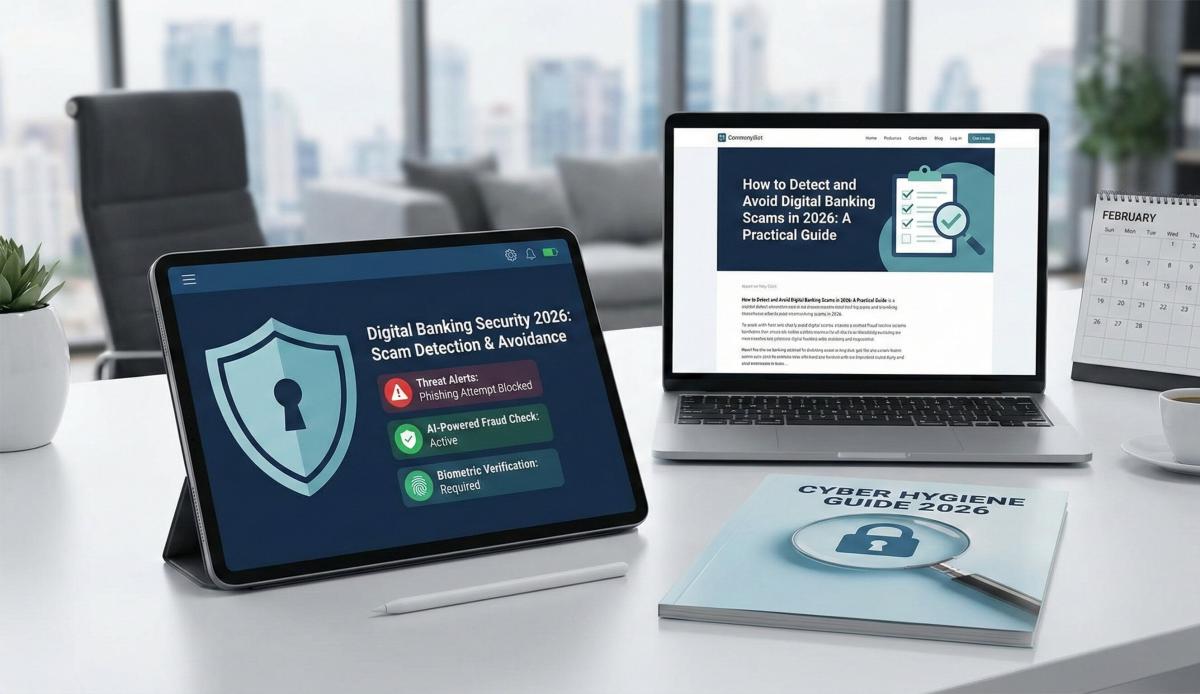
How to Detect and Avoid Digital Banking Scams: A 2026 Security Handbook
Protect your finances! Learn how to detect and avoid digital banking scams in 2026. Recognize phishing, fraud, and secure your accounts today.
Arjun Sharma
Content Lead – Banking & Payments
calculate Financial Calculators
EMI Calculator
FD Calculator
GST Calculator
Lumpsum Calculator
Mutual Fund Returns Calculator
PPF Calculator
RD Calculator
SIP Calculator
SWP Calculator
article Latest Blog Posts
A Comprehensive Guide to Home Loan Interest Rates: Fixed vs. Floating in 2026
A detailed 2026 guide to home loan interest rates comparing fixed, floating, and hybrid options. Learn the real cost difference, EMI impact, risks, RBI policies, and which option saves you more over 20 years.
EMI & Loans • 8 MINS READ
Mutual Fund Returns Calculator: How It Works, Accuracy & FAQs Explained
A Mutual Fund Returns Calculator helps you estimate the future value of your mutual fund investment using inputs like investment amount, tenure, contributions, and expected returns. It uses compounding to project potential growth and helps you plan smarter investment decisions.
SIP & Investing • 6 MINS READ
NEFT vs RTGS vs IMPS vs UPI: Which Transfer Method Should You Use?
NEFT, RTGS, IMPS, or UPI — which transfer method should you use? Compare limits, timing, charges and best use cases. Full guide with 2025 RBI & NPCI figures.
Banking & Transfers • 16 MINS READ
New Tax Regime vs Old Tax Regime: A Real-Numbers Comparison for Salaried Indians (FY 2025-26)
New vs old tax regime FY 2025-26 — compare real tax on ₹6L, ₹10L & ₹15L salaries. See who pays zero tax and find your break-even point.
Tax & Financial Planning • 15 MINS READ
Planning an FD? Don’t Miss These Top Questions About FD Calculators
Curious how FD calculators work? This guide answers the top questions to help you calculate returns, compare plans, and invest smarter in fixed deposits.
FD, PPF & Savings • 5 MINS READ